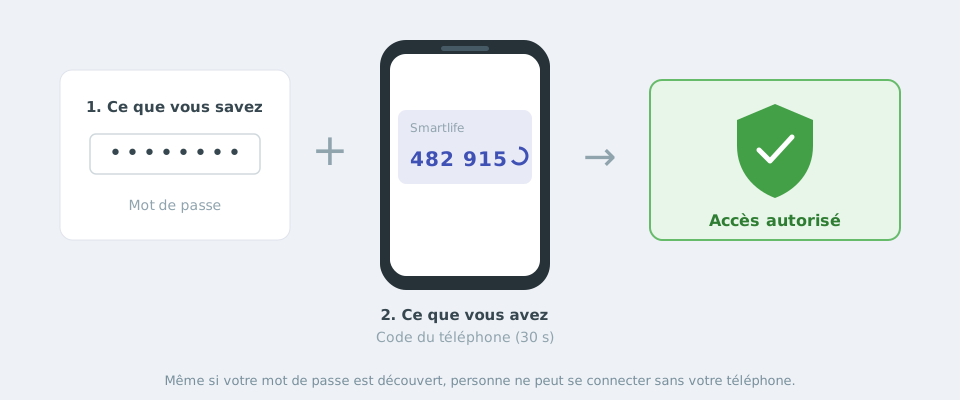
Two-factor authentication (also called 2FA or MFA, for “Multi-Factor Authentication”) adds a second verification step when you sign in, on top of your password.
In practice, after entering your password, the platform asks for a 6-digit code generated by an app installed on your phone (Google Authenticator, Microsoft Authenticator, or any TOTP-compatible app). This code changes automatically every 30 seconds.
Two things are needed: your password and the code shown on your phone.
Why turn it on?
Even if your password were discovered, nobody could sign in to your account without also having access to your phone. It is the most effective protection against account hijacking.
No external service (SMS, email) is used: the verification is computed locally, both by your authenticator app and by our server, from a secret key shared only once during activation.
Step 1: install an authenticator app
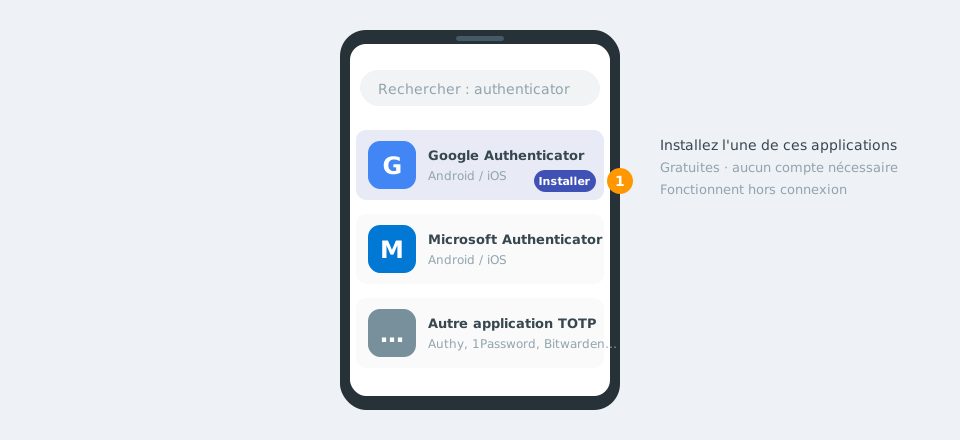
Before you start, install one of the following (free) apps on your phone:
Google Authenticator (Android / iOS)
Microsoft Authenticator (Android / iOS)
Any other TOTP-compatible app (Authy, 1Password, Bitwarden...)
You don't need an account to use these apps: they work offline, directly on your phone.Install Google Authenticator, Microsoft Authenticator or another TOTP-compatible app.
Step 2: first activation when signing in
Two-factor authentication turns on automatically at your first sign-in: there is nothing to configure beforehand in your settings.
1. Sign in as usual Enter your email and password as usual on the sign-in page.
2. Scan the QR Code shown The platform then shows a QR Code with instructions:
Open Google Authenticator or Microsoft Authenticator on your phone.
Tap Add an account (“+” icon), then choose Scan a QR Code.
Point your phone's camera at the QR Code shown on the screen.
The app then adds an entry for the platform and immediately shows a 6-digit code that renews every 30 seconds.
3. Enter the code shown Type this 6-digit code into the “Verification code” field of the sign-in page, then confirm. Two-factor authentication is then permanently turned on for your account. The screens of the platform are shown in French in the illustrations.Scan the QR Code (1-2), then enter the code generated by the app (3-4).
Can't scan the QR Code?
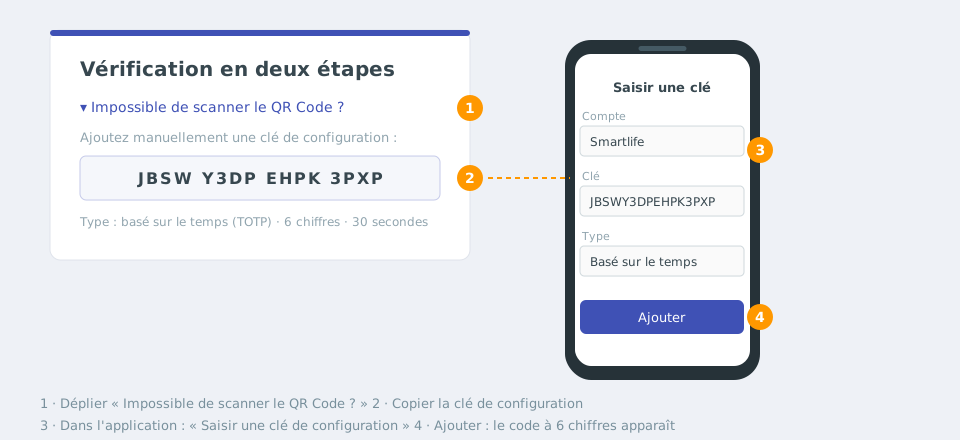
If your phone cannot scan the QR Code (no camera available, unreadable QR Code...), the sign-in page always offers a fallback: a setup key shown below the QR Code, as a string of letters and numbers.
In your authenticator app:
Tap Add an account, then choose Enter a setup key (or “Enter manually”).
Give the account a name (for example the platform's name) and paste the key shown.
If asked, specify that it is a time-based (TOTP) key, with 6 digits and a 30-second period — these are the default settings of most apps.
The app then shows the same kind of 6-digit code as if you had scanned the QR Code.No camera: copy the setup key into the app.
Signing in every day
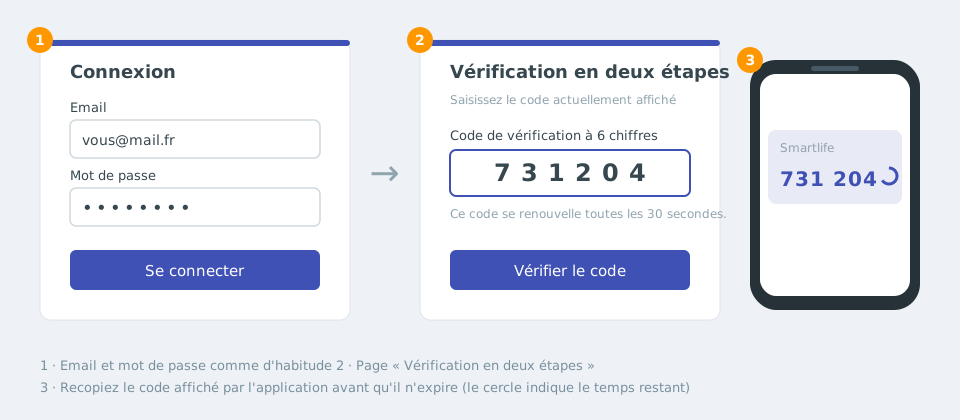
Once two-factor authentication is on, each sign-in happens in two steps:
You enter your email and password as usual.
The platform asks for the 6-digit code currently shown in your authenticator app (no QR Code is shown again: your account is already enrolled).
Simply open the app on your phone, find the entry for the platform, and copy the code shown before it expires.
Every day: password (1), then the code shown by the app (2-3).
Good to know
On mobile, the input field accepts automatic pasting of the code (“one-time code” autocomplete) on most recent browsers.
The code is rejected or has expired
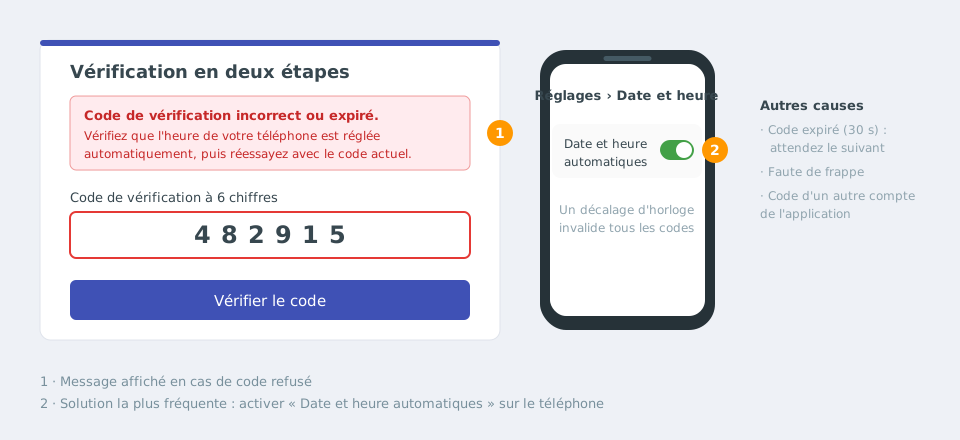
If the message “Incorrect or expired verification code” appears, here are the most common causes:
Likely cause
Solution
The code expired before being confirmed (it only lasts 30 seconds)
Wait for the next code shown by the app and enter it quickly.
The phone's clock is not synchronised
Turn on “Automatic date and time” in your phone's settings: a clock offset systematically invalidates the codes.
A typing mistake (missing or swapped digit)
Carefully re-enter the code shown, without spaces.
You used the code of another account of the app
Check that you are reading the entry of this platform.
After 6 failed attempts, the verification is reset for security: sign in again with your password to start over.Code rejected: turn on “Automatic date and time” on your phone.
Lost phone or app
If you have lost your phone, changed device without transferring your accounts, or uninstalled your authenticator app, you can no longer generate a valid code: the platform does not offer a standalone backup code.
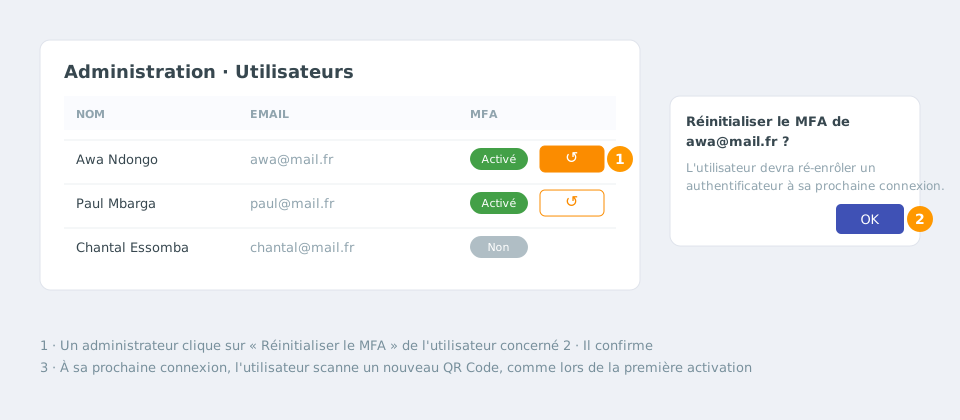
Lost phone: an administrator resets your two-factor authentication.
Solution
Contact an administrator of your organisation on the platform. They can reset your account's two-factor authentication from the administration area (user management). Once reset, you will be asked to enrol a new authenticator (new QR Code) at your next sign-in, exactly as during your very first activation.
When changing phones, remember to use your authenticator app's account transfer feature (available in Google Authenticator and Microsoft Authenticator) to avoid this situation.
Security best practice
Never share your 6-digit code or the setup key with anyone, including someone claiming to be an administrator or technical support: this information is never asked for by phone or email.
If your authenticator app offers locking with a PIN or biometrics, turn it on to protect access to your codes.
If in doubt about a sign-in attempt you did not start, change your password and inform an administrator without delay.
Link copied!
Respect de votre vie privée
Nous utilisons des cookies de mesure d'audience et d'assistance (Google Analytics, Highlight) qui ne sont pas nécessaires au fonctionnement du service. Vous pouvez les accepter ou les refuser.