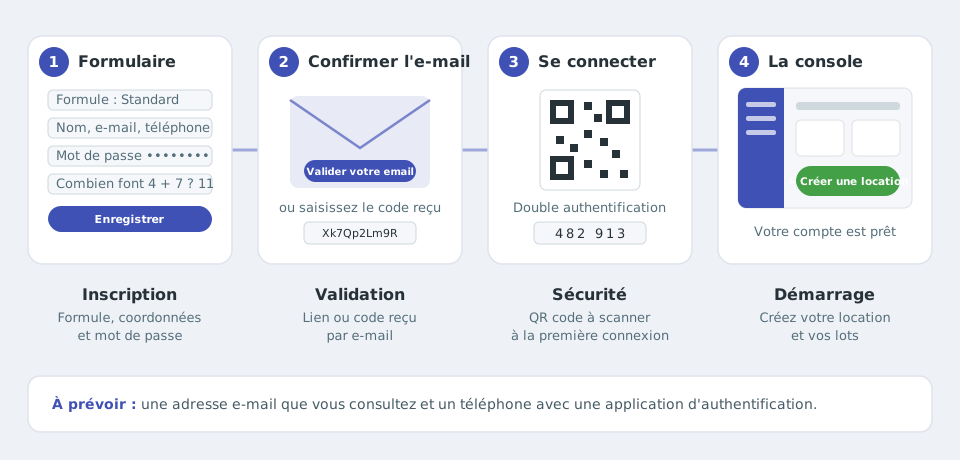
Signing up takes four steps: the form, confirming your email address, the first sign-in with two-factor authentication, then access to the console.Allow about 5 minutes from the form to the console.Have ready:
an email address you check: it is your login and receives the confirmation link (disposable email addresses are refused);
a phone with an authenticator app (Google Authenticator, Microsoft Authenticator, FreeOTP…), required from the first sign-in;
your plan: Starter to manage one unit, Standard for several units, Premium for many units with a public space under your own name. You can change it later from your account menu (“Formule et cotisation”).
Step 1: fill in the sign-up form
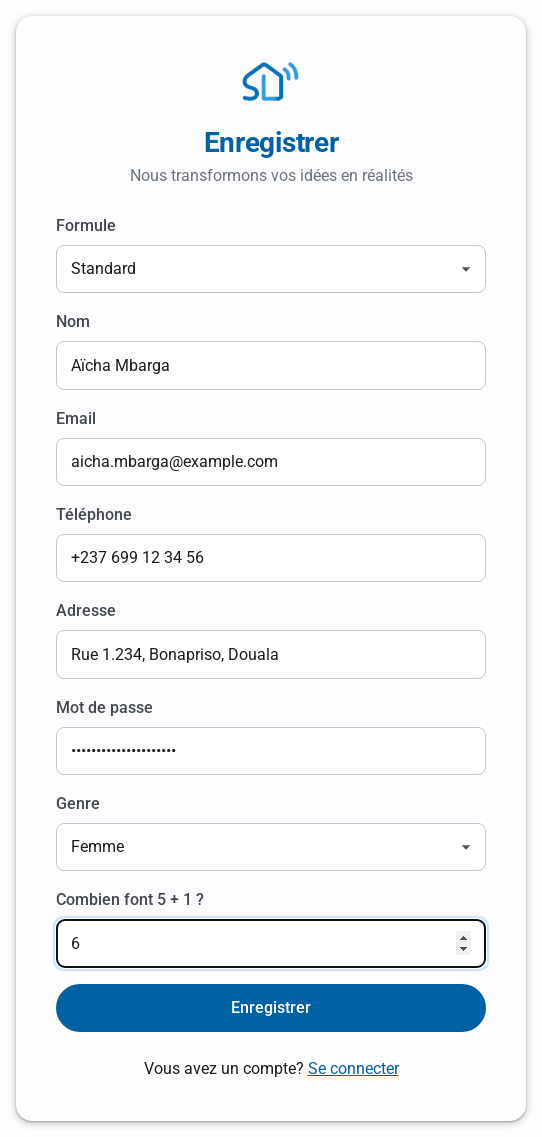
Open the Sign up page (“Sign up” link below the sign-in form), then enter:
Plan: the chosen offer;
Name: your name or your company's, shown on agreements and receipts;
Email: your login;
Phone and Address: optional, useful on the documents sent to your tenants;
Password: make it long and unique;
Gender: your title;
the verification question (“What is 5 + 1?”): it confirms you are not a robot.
Click Register. If something is wrong, the form stays filled in: just correct the field reported.The sign-up form: only the name, email, password and verification question are required.
Step 2: confirm your email address
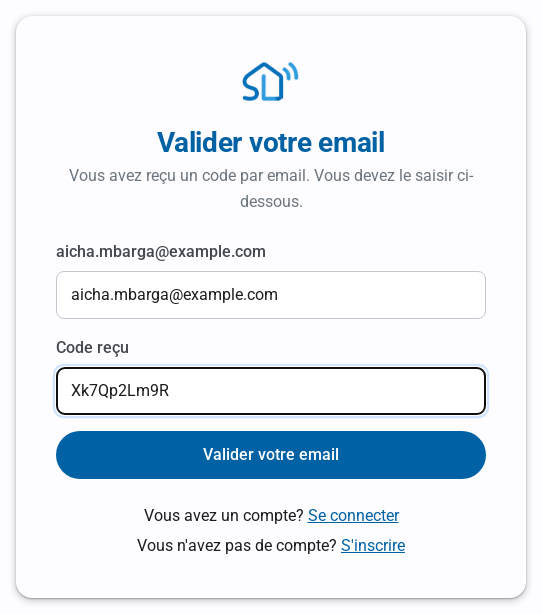
You immediately receive the email “Thank you for confirming your email”. Two options:
click the Validate your email button in the email;
or copy the activation code shown at the bottom of the email into the “Validate your email” page, displayed right after signing up.
Once the address is confirmed, you are taken to the sign-in page.Enter the code received if the link in the email does not work.
No email?
Check your spam folder, then the spelling of the address entered. Until the address is confirmed, signing in shows “Unconfirmed email”.
Step 3: first sign-in and two-factor authentication
Sign in with your email and password. On your first sign-in, a QR code is displayed: scan it with your authenticator app, then enter the 6-digit code it shows. Two-factor authentication is then on; this code will be requested at every sign-in.
“The account already exists”: this address is already registered. Sign in, or use “Forgot password” on the sign-in page.
“Email domain not allowed”: temporary email addresses are not accepted; use your usual address.
“Veuillez valider le captcha correctement”: the answer to the verification question is wrong; a new question is shown.
“Incorrect validation code”: copy the code exactly (upper and lower case matter) or use the button in the email.
Link copied!
Respect de votre vie privée
Nous utilisons des cookies de mesure d'audience et d'assistance (Google Analytics, Highlight) qui ne sont pas nécessaires au fonctionnement du service. Vous pouvez les accepter ou les refuser.