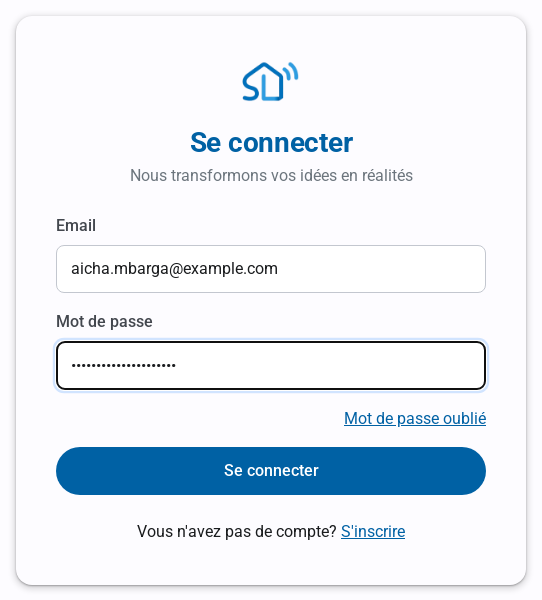
Open the Sign in page, enter the email used when signing up and your password, then click Sign in.The sign-in page; the “Forgot password” link is just above the button.Your account must be activated: if the page shows “Unconfirmed email”, first complete the confirmation of your email address.
Step 2: the verification code
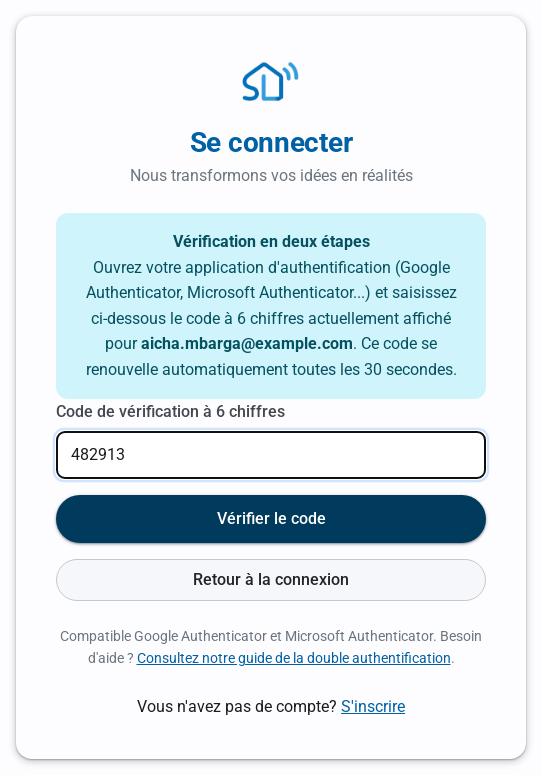
Open your authenticator app and enter the 6-digit code shown for your account, then click Vérifier le code (check the code). The code changes every 30 seconds: use the one displayed when you type it.The code is requested at every sign-in. “Retour à la connexion” (back to sign-in) lets you switch accounts.On your very first sign-in, a QR code is shown instead: follow Two-factor authentication (MFA): setup and use.
After signing in
You go straight to the list of your rentals (or your construction projects). If you have no project or rental yet, the Projects page is shown: start by creating a rental. The top bar menus are described in Quickly access your projects and rentals.
Forgotten password
Click Forgot password below the password, enter your email and confirm. A new temporary password is sent to you by email: the old one no longer works.
Sign in with this temporary password (the verification code is still requested), then replace it with a password of your choice in your profile (account menu, top right), Password card: at least 8 characters, different from the current one.
Signing out
Use the Sign out button (power icon) at the bottom of the left menu, or the entry in your account menu at the top right. Always do so on a shared computer.
Troubleshooting
“Incorrect password”: check upper case and the keyboard language, or use “Forgot password”.
“Account does not exist”: the email entered matches no account; check the spelling or create your account.
“Code de vérification incorrect ou expiré” (incorrect or expired code): your phone's time must be set automatically; enter the code currently displayed.
“Trop de tentatives” (too many attempts): after several wrong codes, the sign-in is cancelled; start again with your password.
Lost phone or deleted app: contact an administrator to reset two-factor authentication (see the dedicated article).
Link copied!
Respect de votre vie privée
Nous utilisons des cookies de mesure d'audience et d'assistance (Google Analytics, Highlight) qui ne sont pas nécessaires au fonctionnement du service. Vous pouvez les accepter ou les refuser.