
What this migration is for
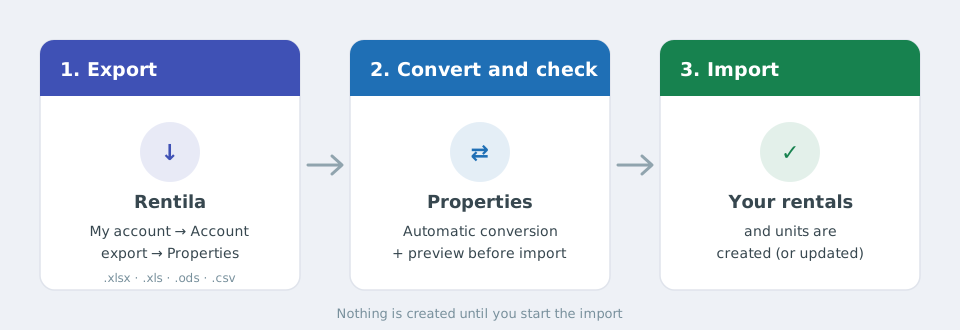
Step 1: export your properties from Rentila
- Sign in to Rentila.
- Open the My account menu then Account export.
- Tick the Properties, Tenants and Leases ("Locations") sections, then click Account export. Without the Tenants and Leases sections, tenants are not in the file. Rentila provides the file in Excel (
.xls) or OpenOffice (.ods) format. - Save the file on your computer without editing it.
Rentila may give you a .xlsx, .xls, .ods or .csv file: all are accepted as they are, you do not need to reopen and re-save them in Excel. Rentila export headings and layout may change: the conversion recognises columns by their title (see below) rather than by position.
Step 2: import the file into Properties
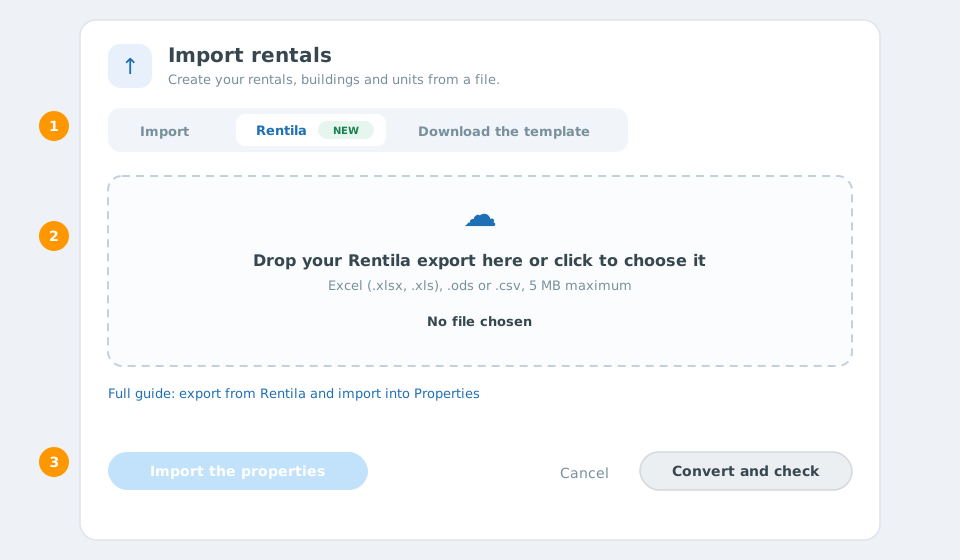
- In the console, open My rentals and click Import.
- Choose the Rentila tab.
- Drag the file onto the drop zone or click it to choose the file (5 MB maximum).
- Click Convert and check.
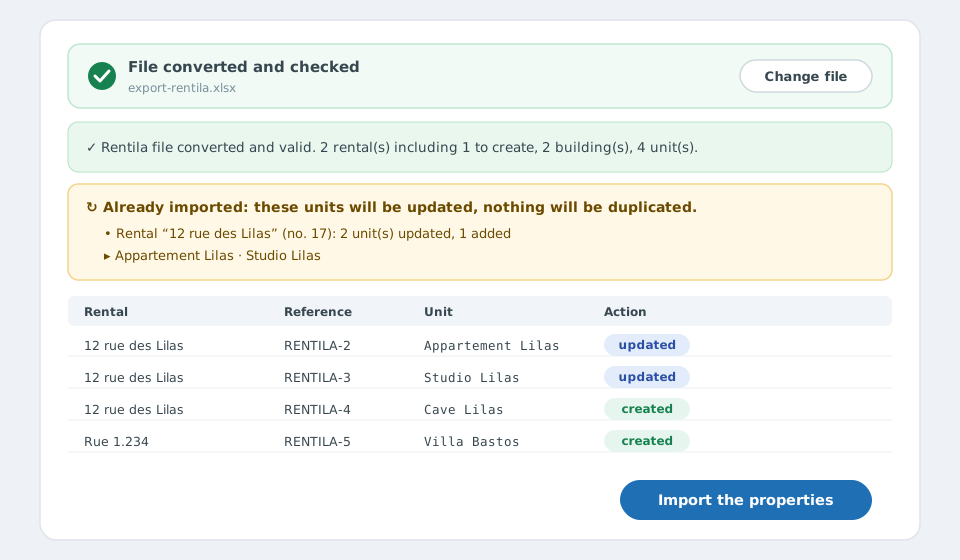
Properties converts the file, checks it with the same rules as any import, then shows a summary (number of rentals, buildings and units), the detail of units to create, update or leave unchanged, any warnings and a preview table. Once the file is checked, the drop zone is replaced by a "File converted and checked" summary: you do not have to choose the file again. The Change file button lets you pick another one. Nothing is created until you start the import.
You can also download the converted file (an Excel workbook in the Properties format, available for 1 hour) to review or complete it.
How Rentila properties are transformed
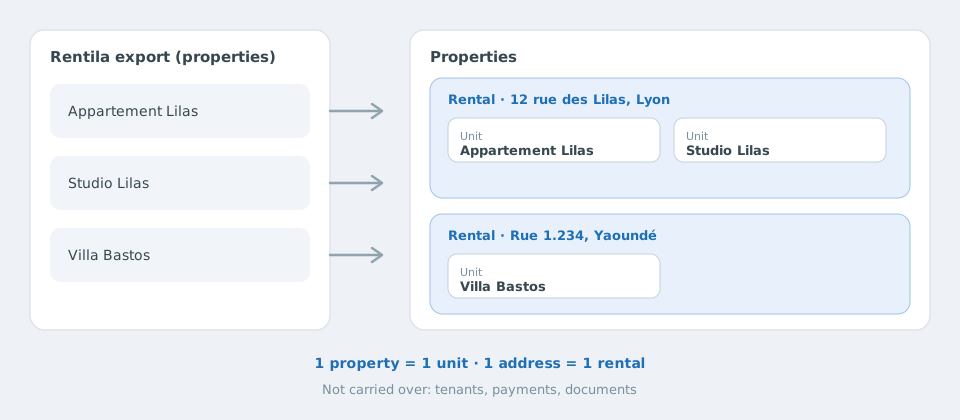
- A Rentila property becomes a unit.
- Properties are grouped into rentals by address (address + postal code + city). If the file has a "building" column, it separates the buildings at the same address.
- One rental is created per different address.
- Buildings are created from the "building" column of the properties, and from any "Buildings" sheet (or "Residences") in the file: each row with a name creates a building, even if it contains no unit yet. The building is attached to the rental at its address (or to the only rental in the file). With no building information, a "Main building" is created.
Information carried over: property name, type, address, postal code, city, country, floor, number of rooms, surface, rent excluding charges, charges, furnished or not, currency and description. The unit type (T1 to T7, room, studio, parking, garage, shop, office…) is deduced from the property type and number of rooms; the rental is set to furnished or unfurnished from the "furnished" column. Amounts written "650.00 €" or "1 250,50" are understood.
Not carried over: payments and rent already collected, receipts, signed contracts, ID documents and other documents. They are created afterwards in the console, unit by unit. Tenants are carried over (see below).
Importing tenants too
If your export contains tenants, they are added to their unit together with the units.
- "Tenants" section of the export: each tenant's contact details (name, first name or company, email, phone, address).
- "Leases" ("Locations") section: the rented property (property name or reference) and the lease start and end dates. Both are matched through the tenant's name.
- "Current tenant" column of the properties sheet: without a dedicated sheet, each property's tenant name is used (no email or phone).
Each tenant gets a record as if added by hand: rent and charges taken from the unit, landlord taken from the rental, current month open for payment. Past rents are not imported: no fictitious arrears are created. A lease whose end date has passed is marked as ended. With no start date, today's date is used; with no end date, one year after the start.
The preview shows how many tenants will be added and which. A tenant whose property is not recognised is flagged by a warning and not imported. Tenants already present (same name, same lease start) are never added twice, including after a resume or a re-import. Tenants are only added to long-term rentals (not seasonal units). Then complete, in the tenant's record, the information missing from the file (email, ID document, guarantor).
Understanding the warnings
- Column not found (name, address, rent): units are named after their address, properties are grouped into a single rental, or rents are set to 0.
- Guessed unit type: for a property with no number of rooms or precise type, the type is set to "T3"; fix it in the unit sheet.
- Columns not carried over: the list of columns in your export that have no equivalent in Properties.
- Skipped rows: rows with neither a name nor an address.
- Several addresses: the number of rentals that will be created.
Step 3: start the import
If the preview looks right, click Import the properties. To create new rentals, a proof of ownership (PDF or image) and a sworn statement may be requested, as for any rental creation. The import runs in batches with a progress bar: do not close the window while it runs. If interrupted, a Resume import button appears when you reopen the window. At the end, the created rental opens directly if the import created only one; otherwise your rentals list is reloaded. The import history is available in the window's dedicated tab.
Re-importing: updating a previous import
You can import the same Rentila export twice, or a more recent export: the second import updates the first one instead of refusing units that already exist or creating a duplicate rental.
- Properties recognises an already imported rental through the reference of its units (the export's "reference" column, otherwise
RENTILA-and the row number). - Units already present are updated (name, type, rent, charges, description…), new units at the same address are added, the file's buildings are matched to the rental's buildings by name (and created if they do not exist yet), and units missing from the file are left untouched.
- An address with no previously imported unit creates, as before, a new rental.
Before any import, an orange box "Already imported: these units will be updated, nothing will be duplicated" shows, for each rental concerned, the number of units updated, added or unchanged, with the list of updated units. The preview table shows the planned action for each unit: created, updated or unchanged. An update requires neither a proof of ownership nor a sworn statement.
After the import: complete your rentals
- Check the unit types flagged by a warning.
- Enter the rents left at 0, if any.
- Add buildings, rooms and equipment if you wish (they can also be imported with the Properties Excel workbook).
- Complete the imported tenants' records (email, ID document, guarantor) and record your payments from the console.
Each unit gets a reference: the one from the export's "reference" column if there is one, otherwise RENTILA- followed by the row number. If the row order changes and the export has no reference column, review the preview carefully before re-importing.
Common errors
- "This file is not a recognised spreadsheet": the file is corrupted or is not a spreadsheet export. Redo the export from Rentila.
- "This file does not look like a Rentila properties export": you exported another section (tenants, receipts…). Start again ticking only Properties.
- "The file exceeds 5 MB": export your properties in several parts.
- Rentila tab locked: the Rentila import requires the Standard or Premium plan; the tab then links to the plans.
- Unit limit reached: the number of units you can import depends on your plan (see the bulk import article).
- File refused with an "Errors" column: download the annotated workbook, fix the flagged rows then import it in the Import tab (available for 1 hour).